
Bitaxe not hashing: hashrate at 0, pool unreachable, reboots, the fixes in order
When a Bitaxe is not hashing, its screen and the top of the AxeOS dashboard almost always say why. Below: a table that maps each message to its cause, the checks to run in order, what the AxeOS numbers mean, then how to reset or reinstall the machine if nothing works.
Published 28 October 2026 · by Pixel · 15 min read
A Bitaxe stuck at 0 GH/s almost always trips on Wi-Fi, the pool address or port, the User field, the power supply or heat. Since AxeOS 2.14 it even powers its chip down when no pool answers, and retries every 30 seconds. The messages quoted here come from the AxeOS 2.15.4 source code, released on 21 October 2026.
Contents 9 parts and a FAQ · 15 min read
- Which message, which cause, which fix?
- Which checks, and in what order?
- What do the AxeOS dashboard numbers mean?
- Best difficulty versus network difficulty: what to expect?
- Rejected shares: which ones are normal?
- Hashrate at 0 and a slow fan: is the pool unreachable?
- Reboot loop or sudden stop: power supply or overheating?
- How to reset Wi-Fi or settings, and reinstall AxeOS?
- Nothing works: what to note before asking for help?
1. Which message, which cause, which fix?
| What you see | Likely cause | What to do |
|---|---|---|
Screen “Welcome to your new Bitaxe!” and a Bitaxe_XXXX Wi-Fi network |
No Wi-Fi saved: new machine or factory reset | Join that network and enter your 2.4 GHz Wi-Fi (step-by-step setup) |
| Screen “Wi-Fi:” followed by your network, with “Incorrect password entered” or “No access point found” | Wrong password, 5 GHz network or out of range | The Wi-Fi guide |
| Hashrate Computing power: the number of attempts per second of a machine or of the whole network. The higher it is, the more tickets you play in each draw. at 0 with no banner, slow fan, “All configured pools A server that machines connect to. A regular pool shares the earnings, a solo pool does not. Solo or pool? unreachable, pausing mining to conserve power.” in Logs | No pool answers: wrong host, port or TLS, router filtering, pool down | Checks 2 and 3 below; the Bitaxe retries by itself every 30 seconds |
| “Address resolution failed for …” in Logs | The pool name does not resolve: typo or DNS | Retype the host, with no space |
| Banner “Using fallback pool - Share An attempt good enough to be counted by the pool. It proves your machine is working, even if it is not enough to find a block. stats reset. Check Pool Settings and / or reboot Device.” | The primary pool stopped answering: the Bitaxe mines on the fallback pool | Check the primary pool; the Bitaxe returns to it by itself once it answers |
| Shares rejected with “Invalid Bitcoin address” or “Unauthorized worker” | Usually a wrong User field (badly copied address, extra space, address from another chain); for “Unauthorized worker”, sometimes a connection the pool refused | Fix the User field (check 4) |
| Shares rejected with “Job not found” or “Stale” | Share sent just as the network found a new block | Nothing, as long as they stay rare |
| Shares rejected with “Difficulty How many attempts it takes on average to find a block. It adjusts itself about every two weeks. Difficulty explained too low” or “Above target” | Share below the pool’s minimum difficulty | See the part on rejected shares |
| Banner “Power Fault Detected. Check your Power Supply.”, cards showing “Not available - Power fault” | The voltage regulator shut down: input voltage too low, overcurrent or overheating | Unplug, plug back in, then check the power supply (check 7) |
| “Danger: Low Voltage” under Input Voltage | Input voltage below 94.9% of nominal, about 4.75 V on a Gamma | A stronger power supply |
| Screen “DEVICE OVERHEAT!”, banner “Device has overheated - See settings” | Chip above 75 °C or regulator above 105 °C | Cool it down, then check frequency, voltage and fan (check 8) |
| Banner “Fan Control Failed (…)” | The fan can no longer be controlled: AxeOS stops mining | Unplug, check the fan and its connector |
| Screen “ASIC A chip built for a single task. Bitcoin mining chips can only compute hashes, but extremely fast. STATUS:” with “ASIC 0 not found” or “ASIC chain detection failed” | The chip does not answer at startup | Cut the power, plug back in; if it persists, self-test, then the seller |
| System page, Reset Reason: “Brownout reset (software or hardware)” | The supply voltage dropped | Change the power supply (check 7) |
| Banner “Mining is paused” | Mining was paused from AxeOS | The top bar button whose tooltip reads Resume Mining |
| Banner “You don't have a share in the mining reward” | A block, if found, would not pay your address | Solo mining: check the pool and the User field |
Where these strings live: screen, banners, Wi-Fi, pool connection, regulator, Reset Reason, rejects. Older versions word some of them differently: update AxeOS first.
2. Which checks, and in what order?
- Wi-Fi, on 2.4 GHz. The Bitaxe cannot see 5 GHz. While it is not connected, its screen shows “Wi-Fi:” followed by your network name and a status; once connected, it shows its IP address. Since 2.15.0, AxeOS also opens at
http://bitaxe.localif your network allows it. Everything is in the Wi-Fi guide. If it is connected but not hashing, look at the router: the project notes that some ASUS and TP-Link routers block mining, and advises turning off AiProtection and the IoT protection (ESP-Miner readme). - The pool host and port. On the Pool page, Stratum
The language machines and pools speak. Host expects the name alone, with no
stratum+tcp://and no port number, and Stratum Port takes the number. AxeOS 2.15.4 splits a full address for you if you paste one (form code). On FindMyBlock, the solo pool I built (0% fee):eu.findmyblock.xyz, port3335; port 3336 is reserved for rented machines (mining on FindMyBlock). For Bitcoin Cash it iseu.bch.findmyblock.xyz, port4335, with a 1.5% fee (the Bitcoin Cash pool). - TLS, only if the pool offers it. Connection Security stays on “No TLS” for a
stratum+tcp://address, such as the one for FindMyBlock, my pool. Only pick “TLS (System certificate)” if your pool publishes a TLS port, with astratum+ssl://orstratum+tls://address: AxeOS then ticks TLS by itself when you paste it. On a port that does not speak TLS, the connection fails and Logs shows “Transport unable to connect to …”. Version 2.15.4 replaced the built-in certificate list this mode relies on (release notes). - The User field: your address, a dot, a name. For example
your-bitcoin-address.bitaxe1, with no space before, after or in the middle: AxeOS sends this field to the pool exactly as typed. The address must come from a wallet you hold the keys to (which wallet to choose) and from the right chain: a bc1 address does not work on the Bitcoin Cash pool, which expects a bitcoincash:q… address. After a factory reset, the Bitaxe points to public-pool.io, port 3333, with a default address that is not yours (Gamma 601 factory config): replace the host, the port and the address. - The password:
x. Unless your pool says otherwise. Also leave Stratum Protocol on Stratum V1 unless the pool announces Stratum V2: AxeOS itself warns, “Not all pools support Stratum V2.” - The AxeOS version. It shows on the Update page, next to Current Version. The latest, 2.15.4, came out on 21 October 2026. Since 2.15.0, released on 21 August 2026, a single file is enough to update,
esp-miner.bin, which now includes the interface (2.15.0 release notes). Step by step: update AxeOS. - The power supply. A Gamma takes 5 V and nothing else: “5V DC Only!”, the project warns, any other voltage damages it. The supply must deliver more than 4 A (20 W) without dropping below 5 V, which often takes a 25 to 30 W unit (bitaxeGamma README); the spec sheet in my Bitaxe Gamma review lists a 5 V 6 A brick. In AxeOS, Input Voltage should stay between 4.8 and 5.3 V (OSMU wiki). The Gamma GT (board 801) is designed for 12 V instead: that is its nominal voltage in the ESP-Miner code. Unplug the cable and plug it back in: the OSMU wiki recommends that over a simple restart from the interface.
- Heat. The OSMU wiki’s guidelines: chip below 70 °C, voltage regulator below 90 °C. Above 75 °C on the chip or 105 °C on the regulator, AxeOS 2.15.4 stops mining (details below). Cleaning, thermal paste and fan: miner running hot.
The Pool page fields for FindMyBlock, my own solo pool (Bitcoin, 0% fee):
eu.findmyblock.xyz3335Stratum V1No TLSyour-bitcoin-address.bitaxe1x3. What do the AxeOS dashboard numbers mean?
| Label | What it is | What should worry you |
|---|---|---|
| Hashrate | The hashrate read every second from the chip’s own counters, with 1m, 10m and 1h averages. Expected is a calculation based on the frequency setting | A hashrate that stays far below Expected |
| Error | The share of work the chip itself flags as wrong, as a percentage of the hashrate | A rise after a frequency change, an overclock Pushing the chip's frequency and voltage for more hashrate. It draws and heats noticeably more: on the Thor X1, +50% hashrate for 2.1 times the power. The review, undervoltage or with a weak power supply, according to the AxeOS help text |
| Shares (accepted) | Shares the pool accepted since the last restart or the last pool switch | A counter stuck at 0 while the hashrate is running |
| rejected | Refused shares, grouped by reason, with their percentage | The reason: see the part on rejected shares |
| Difficulty (pool card) | The share difficulty set by the pool: only results that reach it are sent | Nothing, the pool sets it |
| Fee or Share (pool card) | Fee: the part of the block that would go to the pool. Share, in red: your part, when it falls below 95% | Solo with no fee, Fee shows 0% |
| Best Difficulty | all-time best: the best result ever found, kept across restarts. session best: the best since the last restart | Nothing, it is a lottery |
| Difficulty (Block Header) | The network difficulty, 140.6 T as of 17 October 2026. A result that reaches it finds a block | “!!! BLOCK FOUND !!!” on the screen |
The Bitaxe does not send everything to the pool. The Gamma’s BM1370 chip only reports results of difficulty 256 or more, and AxeOS only forwards those that reach the pool difficulty (code). On average, shares per minute equal the hashrate divided by the share difficulty times 4.3 billion, multiplied by 60. For a Bitaxe Gamma at 1.2 TH/s (rated figure): about 17 per minute at difficulty 1,000, about 1.7 at 10,000.
The share counters reset at every restart and every pool switch (code): a 0 right after a restart is normal. If Error climbs after a frequency increase, go back to the values marked (Default) in Settings; to push it safely, see overclocking a Bitaxe.
4. Best difficulty versus network difficulty: what to expect?
Every hash the chip computes has about one chance in D times 4.3 billion of reaching difficulty D. So we can calculate the median best difficulty a Bitaxe reaches, the one that half of all machines beat: this is not a measurement, it is a calculation.
| Mining time | Median best difficulty |
|---|---|
| 1 hour | about 1.5 M |
| 1 day | about 35 M |
| 1 week | about 244 M |
| 30 days | about 1.04 G |
| 1 year | about 12.7 G |
Two consequences. A record that has not moved for days is not a fault: every new record is rarer than the last one. And session best starts again from zero at every restart, all-time best does not.
The network difficulty was 140.6 T as of 17 October 2026: a best difficulty of 1 G is still about 140,600 times below it. For this Gamma, that makes about 1 chance in 16,000 per year of finding a block (network as of 17 October 2026). The solo mining calculator runs the numbers for your machine, and mining difficulty explained shows where that figure comes from.
5. Rejected shares: which ones are normal?
AxeOS shows the reason sent back by the pool and, when it knows it, an explanation. The exact wording depends on the pool software, hence several variants for the same cause.
| Reason shown | What AxeOS says | What to do |
|---|---|---|
| “Job not found”, “Stale”, “stale-share” | While the share was being submitted, the network had already found a new block | Nothing, as long as they stay rare |
| “Duplicate”, “Duplicate share” | This share has already been submitted | Update AxeOS if they keep coming |
| “Difficulty too low”, “Above target”, “difficulty-too-low” | The share does not meet the minimum required difficulty | Update AxeOS, set Suggested Difficulty back to its factory value or to 0 |
| “Invalid Bitcoin address” | The username is not a valid Bitcoin address | Fix the User field |
| “Unauthorized worker”, “Not subscribed” | The pool has not authorized or subscribed the connection | Check User and Password, then restart |
Suggested Difficulty, on the Pool page, only states a preference: “Servers are not required to honour this request”, AxeOS notes, and 0 turns it off. Its factory value is 1,000 on a Gamma 601. For Stratum V2, version 2.15.0 fixed one cause of “difficulty-too-low” rejects (release notes). A wrong User field shows up fast: “Invalid Bitcoin address” rejects arrive with the very first shares.
6. Hashrate at 0 and a slow fan: is the pool unreachable?
Since version 2.14.0, released in June 2026, a Bitaxe that cannot reach any pool stops burning power for nothing (change 1689). After three attempts per configured pool, it powers its chip down, drops the fan to 30% and retries every 30 seconds (2.15.4 code). The hashrate falls to 0 without anything being broken, no banner shows up, and mining resumes by itself as soon as a pool answers. Lines to look for on the Logs page:
Address resolution failed for …: the pool name does not resolve. A typo in Stratum Host, or the router’s DNS.Transport unable to connect to …: nothing answers at that address on that port. Wrong port, TLS turned on for nothing, router filtering or pool down.All configured pools unreachable, pausing mining to conserve power.: every pool failed, mining is paused.Pool recovery: primary pool reachable, resuming mining (…): it is back.
With a fallback pool configured, the Bitaxe switches to it instead of stopping, shows “Using fallback pool” and tests the primary pool every 60 seconds to switch back (“Primary pool is back! Switching from fallback.”). The setting is explained in set up a fallback pool.
7. Reboot loop or sudden stop: power supply or overheating?
Start with the cause of the last restart, shown on the System page next to Reset Reason (list of messages):
- “Brownout reset (software or hardware)”: the voltage dropped. Blame the power supply, its cable or its outlet.
- “Reset due to power-on event”: a power cut or a replug.
- “Software reset via esp_restart”: a requested restart, for example after an update or a setting change.
- “Software reset due to exception/panic”, or a watchdog message: the software crashed. Update AxeOS; if it continues, reinstall it (next part).
Power fault. The “Power Fault Detected. Check your Power Supply.” banner appears when the voltage regulator reports that it switched off: overvoltage, overcurrent, input undervoltage or temperature (regulator code). On a 5 V board such as the Gamma, this regulator turns off below 4.5 V at the input and only restarts at 4.8 V. The fix almost always goes through the power supply: a 5 V unit that holds more than 4 A, a cable in good condition, then a real unplug.
Overheating. In AxeOS 2.15.4, above 75 °C on the chip or 105 °C on the regulator, the Bitaxe stops mining, runs the fan at 100%, waits at least 30 seconds and until the regulator is back under 95 °C, then restarts 100 MHz and 100 mV lower (code). The screen shows “DEVICE OVERHEAT!” and “Power, frequency and fan configurations have been reset. Go to AxeOS to reconfigure device.” Afterwards, the machine runs slower and its fan stays at 100% in manual mode. Once the cause is fixed (cleaning, thermal paste, airflow), go to Settings: set Frequency and Core Voltage back to the values marked (Default), tick Automatic Fan Control again, then Save. If the Disable Overheat Mode button is shown, AxeOS adds: “Make sure to reset Frequency and Voltage before clicking this button.”
Do not hold the BOOT button while plugging the Bitaxe in: it then starts its self-test, “BITAXE SELF-TEST”, instead of mining (code). Plug it back in without touching the button.
8. How to reset Wi-Fi or settings, and reinstall AxeOS?
Change Wi-Fi without wiping everything. Hold the BOOT button for 2 seconds: the Bitaxe reopens its Bitaxe_XXXX setup network, whose name and a QR code appear on the screen; another long press closes it (AxeOS 2.15.4). It also reopens it by itself as long as it cannot connect. Join that network, then enter the new Wi-Fi as on day one (set up a Bitaxe). A short press only cycles through the screens.
Interface no longer loads. The project provides a recovery page, http://ip-address/recovery: it can turn off a custom interface or upload the www.bin file again (ESP-Miner readme, page code).
Back to factory settings, or a Bitaxe that no longer boots. The documented method is to flash the factory image for your board. The easiest way is the official Web Flasher, in the browser:
- Open the Web Flasher in Chrome, Edge or Brave. It requires a Chromium-based browser.
- Plug the Bitaxe into its power supply and connect it to the computer over USB, as the project’s procedure describes. Some versions cannot connect directly to a computer’s USB-C port: use a USB-A adapter in that case, the ESP-Miner readme advises.
- Click Connect and pick the Bitaxe’s serial port in the browser pop-up.
- Choose the model, the board version and the firmware version. The board version shows on the AxeOS System page, next to Board Version: 601 for a Gamma 601, for example.
- Decide on Keep configuration. Ticked, the tool keeps Wi-Fi, pool and settings. Unticked, it also writes the factory configuration: that is the real reset (Web Flasher code).
- Click Start Flashing and wait for “Flashing completed successfully! Device has been restarted.” without unplugging anything.
- After a full reset, the Bitaxe runs its self-test, then restarts by itself 10 seconds after “SELF-TEST PASS!”. On “SELF-TEST FAIL!”, the screen offers: “Hold BOOT button for 2 seconds to cancel self-test, or press RESET to run self-test again.” Then reconnect the Wi-Fi and replace the default address in the User field with yours.
9. Nothing works: what to note before asking for help?
Write down the model, the Board Version and the AxeOS version (System page), the Reset Reason line, any banners shown and the last lines of the Logs page, which can be downloaded since version 2.14.0. If the Bitaxe restarts too fast to open AxeOS, the Web Flasher can also record its log over USB: Start Logging, then Download Logs.
With that, ask on Discord: several of us answer there. The project has its own as well, run by OSMU, which maintains AxeOS.
Frequently asked questions
Why does my Bitaxe show 0 GH/s?
Most often, no pool answers: since AxeOS 2.14, the Bitaxe then powers its chip down and retries every 30 seconds, with no warning banner. Otherwise, read the banner at the top of the dashboard (power fault, overheating, pause) or the screen: “Wi-Fi:” followed by a status means it is not connected.
Are “Job not found” rejected shares a problem?
No, as long as they stay rare: AxeOS explains them as a share sent just as the network had found a new block. Watch out instead for “Invalid Bitcoin address”, which points to a User field to fix, or for a pile of “Difficulty too low”.
What does power fault mean on a Bitaxe?
That the voltage regulator shut down: input voltage too low, overcurrent or overheating. AxeOS shows “Power Fault Detected. Check your Power Supply.”: unplug, plug back in, and on a Gamma use a 5 V supply that can deliver more than 4 A.
How do I factory reset a Bitaxe?
Flash your board’s factory image with the official Web Flasher, with Keep configuration unticked, then enter your Wi-Fi and your address again. To change Wi-Fi only, a 2-second press on BOOT reopens the Bitaxe_XXXX network.
My best difficulty is low: is my Bitaxe broken?
No, it is chance. By calculation, a Bitaxe Gamma at 1.2 TH/s (rated figure) reaches a median of about 35 M in a day and 1 G in about 29 days, far from the network difficulty of 140.6 T as of 17 October 2026.
Sources
- ESP-Miner (AxeOS) readme, version 2.15.4
- ESP-Miner 2.15.0 release notes, 21 August 2026
- AxeOS 2.15.4 dashboard, source code
- Share rejection reasons explained by AxeOS 2.15.4
- Overheat protection, AxeOS 2.15.4 source code
- OSMU wiki, Bitaxe FAQ
- Bitaxe Gamma hardware README: power supply
- Official Bitaxe Web Flasher
A question about this guide? Ask it on the Discord, several of us answer there.
Other guides
-
 Bitaxe not connecting to Wi-Fi: the fixes, in order
2.4 GHz first, then your router, the error messages and a clean reset.
12 min read · updated 28 Oct 2026
Bitaxe not connecting to Wi-Fi: the fixes, in order
2.4 GHz first, then your router, the error messages and a clean reset.
12 min read · updated 28 Oct 2026 -
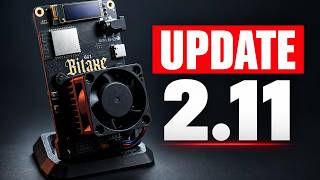 Update AxeOS step by step
Get the right version, install it safely, and what to do if it gets stuck.
3 min read · updated 28 Oct 2026
Update AxeOS step by step
Get the right version, install it safely, and what to do if it gets stuck.
3 min read · updated 28 Oct 2026 -
Set up a Bitaxe step by step: Wi-Fi, AxeOS and pool
From power-up to the first share: Wi-Fi, AxeOS, every pool field and quick fixes.
10 min read · updated 28 Oct 2026
-
 Miner running hot: cleaning, thermal paste and cooling
Spot overheating, fix it, and gain some hashrate along the way.
2 min read · published 24 Sept 2026
Miner running hot: cleaning, thermal paste and cooling
Spot overheating, fix it, and gain some hashrate along the way.
2 min read · published 24 Sept 2026